

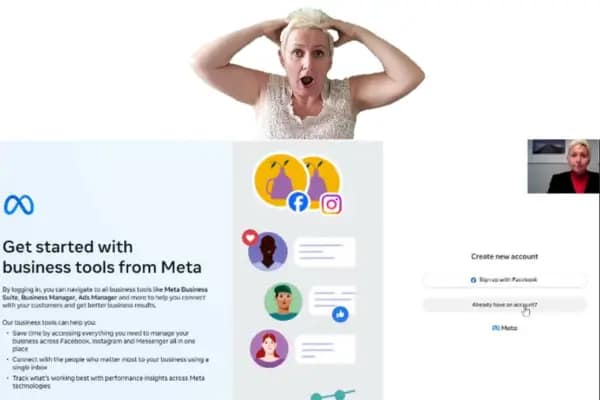
Facebook Business Manager Step by Step Set Up and why running ads without it is wasting your budget
This guide shows how to create and configure a Meta Business Manager account in ~15 minutes, so your ad assets, pages, and permissions are centrally managed.
What we see is that the majority of agents delay setting up Facebook Business Manager, if they do it at all.
If you want to manage ads, run campaigns, and keep your Facebook and Instagram organized like a pro (without technical confusion)… Business Manager is non-negotiable.
-Annett T. Block
The setup is straightforward if you follow the steps in sequence.
If you’re looking for how ads work across meta and decision stages, start with our Ads for Real Estate framework.
This guide uses non-technical instructions and defines each required input. By the end of this post, you’ll be officially set up, verified, and ready to run campaigns with centralized assets.
Key Takeaway
Setting up Facebook Business Manager is strategic because it controls three levers: asset ownership (Pages/ad accounts), access control (roles/permissions), and campaign infrastructure (tracking and account governance).
By investing 10–15 minutes to get it right:
- You unlock business-level features such as asset assignment, role-based permissions, partner access, and centralized Business Settings for Pages, ad accounts, and Instagram connections.
- You protect your personal profile by separating personal identity from business assets and granting access via roles (admin/advertiser/analyst) instead of sharing login credentials.
- You organize everything you need to scale your marketing in a smart way.
Agents who take the setup seriously operate with stronger security, cleaner reporting, and scalable permissions.
You now have the correct account structure to run campaigns with secure access and centralized asset management.
Table of Contents
Why Setting Up Facebook Business Manager Matters for Agents
Running ads without Business Manager often wastes budget because asset ownership and permissions are unclear, tracking is harder to configure, and partners may require unsafe access methods (shared logins instead of role-based access).
Meta Business Manager (often referred to as Facebook Business Manager) is the admin hub that controls your business assets: Facebook Page, Instagram account, ad accounts, and user permissions. It is required for clean asset ownership and secure access management.
Facebook Business Manager is the foundation that helps reduce wasted ad spend by enforcing correct asset ownership, permissions, and tracking configuration.”
Here’s why it matters:
Professional Control:
- It separates your personal Facebook profile from your business activities. Keeping everything organized, professional, and secure.
Centralized Management:
- Manage everything Facebook related from one Dashboard. You can manage your Facebook page, Instagram profile, ad accounts, and marketing partners.
Access to Advanced Tools:
- Business Manager is where you control ownership and permissions (Business Settings). Ads Manager is where you build campaigns. You typically need both: Business Manager to manage assets and access; Ads Manager to execute advertising.
Scalability:
- Whether you’re solo or have a team, Business Manager lets you manage everything in one place. You can add users, assign roles, and collaborate with ease. No need to ever give away your personal login.
Bottom line: Business Manager is the first step because it establishes asset ownership (Pages, ad accounts, pixels, API) and role-based access, which reduces account risk and improves campaign governance.
Next: follow the setup sequence that ensures (1) account creation, (2) email confirmation, and (3) asset connection (Page, Instagram, ad account).
What You Need Before You Start
Before you dive into setting up Facebook Business Manager, let’s make sure you have everything you need.
Here’s your checklist:
- A Personal Facebook or Instagram Account. You must have an active personal profile to create a Business Manager account. (If you don’t, set one up at Facebook.com or Instagram.com.)
- Business Information:
- Business Name
- Business Email Address
- Business Address
- Phone Number (optional but helpful)
- Administrator Access to Existing Pages (if you have them). If you already own a Facebook Business Page or an ad account, make sure you have admin rights. You’ll connect these inside your Business Manager.
Pro Tip: Use a business email you own and control. Don’t use a random Gmail or personal account to set up your Business Manager. It keeps everything clean, professional, and recoverable if you ever need support.
If the checklist is complete, proceed to the setup steps below.
Step-By-Step: Setting Up Your Facebook Business Manager
This step-by-step guide explains how to set up Facebook Business Manager and why running ads without it can waste budget through poor asset ownership and unmanaged permissions.
Step 1: Go to Facebook Business Manager
- Open your browser and go to business.facebook.com.
- You’ll land on the Business Manager home page.


Step 2: Create a New Account
- Click “Create Account” in the top-right corner.
- Enter your Business Name, Your Name, and Business Email Address.
- Click “Next.”
Step 3: Enter Your Business Information
- Add your Business Address, Website (optional but recommended), and Phone Number.
- Confirm and submit your details.
Step 4: Set Up Your Business Settings
- From the main dashboard, navigate to “Business Settings.”
- Here, you can:
- Add your Facebook Business Page.
- Add your Instagram Account.
- Create or Claim an Ad Account.
Step 5: Assign Roles (Optional)
- Want a team member or marketing partner to help manage your page or ads?
- Invite them by email under the “People” section and assign their access level (admin, employee, advertiser, etc.).
At this point, the account is created; the remaining step is confirming email and connecting assets.
Confirming Your Email and Activating Your Account
Email confirmation activates your Business Manager account. Without confirmation, you may be blocked from connecting assets and running ads.
Step 1: Check Your Email
- Go to the inbox of the business email address you used to sign up.
- Look for an email from Facebook titled “Confirm Your Business Email.”
Step 2: Click the Confirmation Link
- Open the email.
- Click the confirmation button or link inside.
This simple step verifies your identity and activates your Business Manager account.
Without email confirmation, your Business Manager won’t function properly. You also won’t be able to run ads.
Once confirmed, you’ll officially be ready to link pages, create ads, and organize your marketing like a pro.
After confirmation, you can connect your Page, ad account, and Instagram profile.
What To Do Once Your Business Manager Is Live
Now that your Facebook Business Manager is officially active, here’s what you should do next:
Step 1: Add Your Facebook Business Page
- From the Business Settings dashboard, click “Pages.”
- Choose “Add Page” if you already have one, or “Create New Page” if you don’t.
Step 2: Connect Your Instagram Account
- Still in Business Settings, find “Instagram Accounts.”
- Log in and link your business Instagram profile. This makes cross-platform marketing a breeze.
Step 3: Set Up Your Ad Account
- Navigate to “Ad Accounts.”
- Either create a new one or claim an existing one tied to your business.
- Make sure your payment information is up-to-date.
Step 4: Organize Your Access
- Invite your marketing team, assistants, or trusted partners.
- Assign roles with care (admin, advertiser, analyst) based on what they need to do.
Step 5: Bookmark Your Business Manager
- Bookmark the login URL to reduce friction when switching between Business Settings and Ads Manager.
You now have a business-grade setup: centralized assets, controlled permissions, and an ad account ready for governance and scaling.
FAQ: Facebook Business Manager for Real Estate Agents
Q: Do I need a Facebook Business Manager if I’m not running ads yet?
A: Yes. Setting it up now organizes your accounts proper and prepares you for when you’re ready to scale.
Q: What happens if I skip email confirmation?
A: Your Business Manager will stay incomplete, and you won’t be able to access many features. Including ad creation.
Q: Can I manage several business pages inside one Business Manager?
A: Absolutely. You can manage many Pages, Instagram accounts, and even separate ad accounts. You now have them all under one roof.
Q: Is Business Manager free to use?
A: Yes. Creating and managing a Business Manager account costs nothing.
Q: Can someone else set this up for me?
A: Yes, but it’s easy enough to do yourself and it’s better you control your foundation from Day One.
Final Thought
Getting your Facebook Business Manager set up isn’t glamorous.
This setup matters because it creates a durable marketing foundation: centralized assets, controlled permissions, and a trackable ad account structure that supports consistent campaigns.
This small setup unlocks bigger advertising power, cleaner brand control, and long-term growth.
Today you planted the seed. Tomorrow you’ll watch the authority (and leads) grow.
*Results depend on market conditions, budget, and execution; this content is not legal or financial advice. Always align your targeting and messaging with Fair Housing rules, platform ad policies, and privacy regulations for lead handling.
Author Annett T. Block
Annett T. Block is a real estate marketing strategist and licensed Florida broker. She works with real estate agents who want to stop chasing leads that die on the vine and start attracting business from people who already know them through video-first warm audience building, retargeting, and consistent market presence. She is the founder of The Digital Adopters.
Her thesis is simple: The lead isn’t dead. You asked for the conversation before they knew you.
One agent. One market. ZERO COMPETITION.
In real estate since 2008. Licensed Florida Broker since 2011. More than 2,000 agents, teams, and brokerages served. Featured in Inman News. She is the author of From Listings to Legends.